
Generally, while watching movies or reading an eBook, I fall asleep. This must also be a case with many of you, watching movies on your laptop and then lying asleep the next minute, with only ghosts left to watching your boring movie.

So its better to have an Automatic timer for shutdown. We All use some or the other software to shutdown windows in our system. But there is a inbuilt option in windows which allows us to shut the windows at certain time.I found this trick in Microsoft Windows Manual.
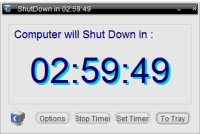
There are two ways to implement Automatic shutdown. In both cases a code was given to set the time for shutdown with just using RUN command. This shutdown timer works perfectly in windows versions. Just you have to enter a simple command in RUN.
M - 1
If you want to shutdown your computer at the specific time without clicking the menu and waiting for shutdown process, you can do it just using windows without any additional software.
Here is the steps to do that :
- Click Start, and then Click RUN
- Type for examples “at 10:30 shutdown -s” then click OK (replace hours with the time you want)
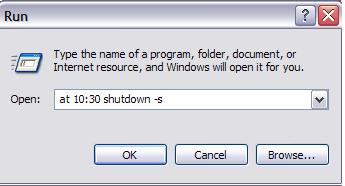
- The computer will shutdown at 10:30
- To cancel, go back to the Run command and type “shutdown -a” and then click OK.
1) Press Ctrl + R to open the RUN command.
2) Type the below code given below.
"shutdown.exe -s -f -t 300" 2) Type the below code given below.
shutdown.exe is for calling the shutdown executable.
–s is the command for shutdown.
–f is for performing a forced shutdown. If an application stops responding when shutting down, this command will force shut it. Using this command is not compulsory, but recommended.
–t command is for specifying the time the shutdown will take place. After you put the –t command give a space and then enter the time in seconds. So in the above example, the computer will be shut down in 6 hours.
Let’s put the whole command in one line: "shutdown.exe -s -f -t seconds"
Tip: If you want to restart the computer instead of shutting it down, replace the –s with –r. Similarly, if you’d like to logoff, replace –s with –l.
Tip 2: If you want to display a message that displays when the countdown is in progress, you can append a –c command with a message attached. Like this: -c “Computer is shutting down”
Tip 3: To Hibernate Computer use "rundll32.exe PowrProf.dll,SetSuspendState".Similarly to Sleep Computer use "rundll32.exe powrprof.dll,SetSuspendState 0,1,0"
Tip 4: You can also create shortcuts for all the above commands in your desktop.

In the shortcut location box, you’ll need to enter the correct command, which I’ve listed for you above.

After you click Finish, you should now have a new icon that you can double-click to immediately shutdown, restart, or lock your computer.
Tip 5: If you want to use a free software to shutdown the system automatically at a given time then the best software is Freeshutdown Timer.with this software you can Shutdown, Restart, Log off, Lock, Hibernate and Standby operations. Since this is a freeware software i have uploaded the setup file of Freeshutdown Timer in 4shared.com so you can download directly from the below link.
Ur's




[100% WORKING TRICKS]
ReplyDeleteSet Timer for Automatic Shutdown using Notepad.
http://www.topfurtive.co.cc/2012/07/set-timer-for-automatic-shutdown-using.html
Set a Timer for Automatic Shutdown using Shortcut.
http://www.topfurtive.co.cc/2012/06/how-to-set-timer-for-automatic-shutdown.html